
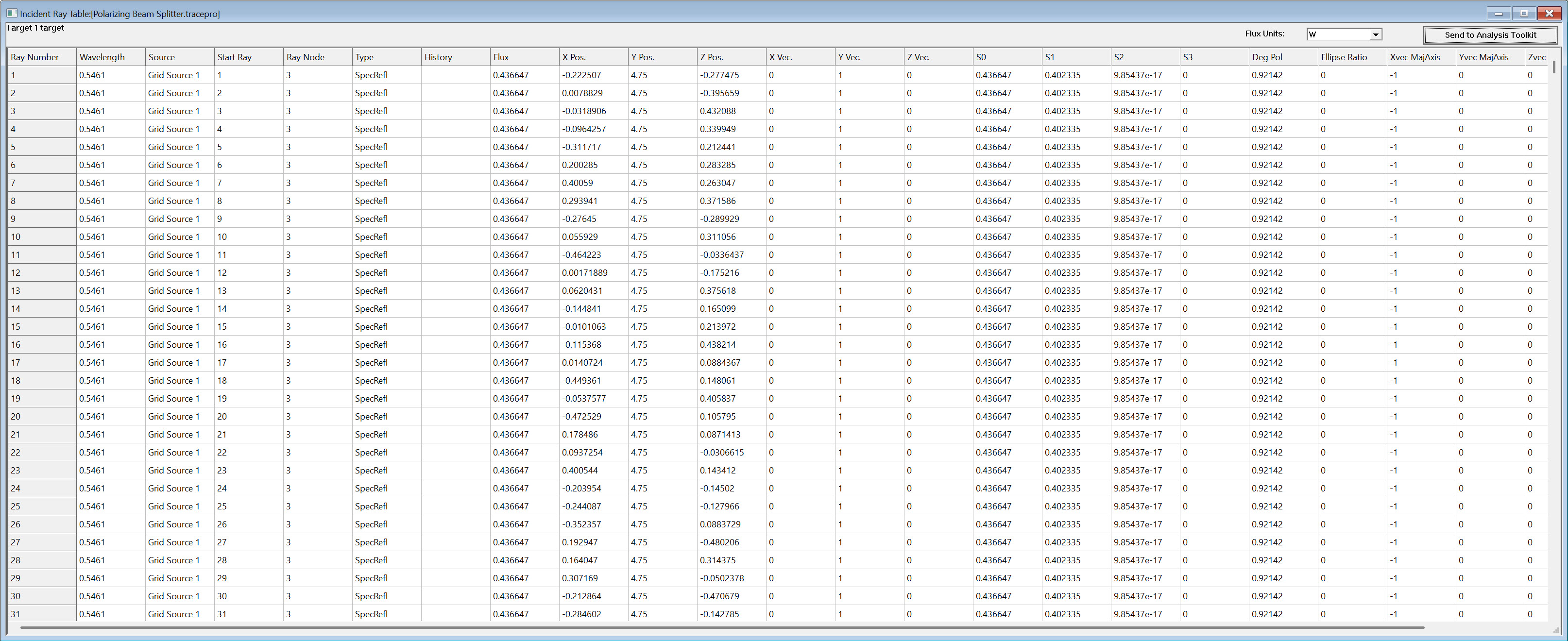
Did you know TracePro features an Incident Ray Table? The Incident Ray Table will show you information about every ray that hits a selected surface. The information available in Incident Ray Table includes Ray Number, Wavelength, Source, Start Ray, Ray Node, Type, History, Flux, X Position, Y Position, Z Position, X Vector, Y Vector, Z Vector, and Optical Path Length. In the Standard and Expert editions of TracePro, polarization data is also shown when Polarization is enabled. The Type column will display what happened to the ray at the previous ray node such as Specular Transmission, Specular Reflection, Random Reflection, etc….
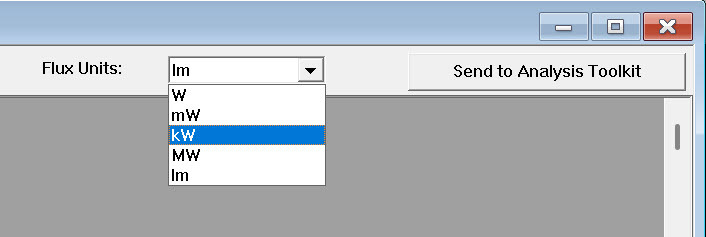
The Flux Units for the Incident Ray Table can be selected using the dropdown menu at the top of the Incident Ray Table window. Unit options include watts, milliwatts, kilowatts, megawatts, and lumens. The Incident Ray Table can also be used to send the ray data to the Analysis Toolkit.
The Incident Ray Table can be saved by making it the active window and then going to File-> Save As. The Incident Ray Table can be saved as a text file and the data is then available for post processing.

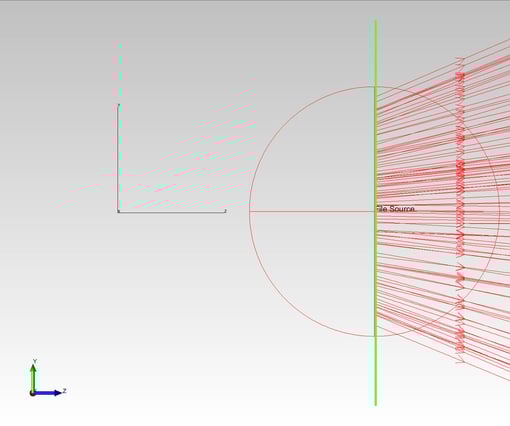
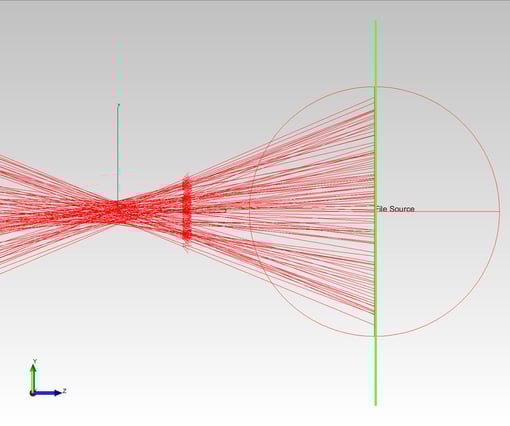
The Incident Ray Table can also be saved as a File Source in either a text or a binary format. This allows the user to make a new light source for TracePro based on incident ray data. An additional option is that the ray directions can be reversed when saving the Incident Ray Table as a File Source.
The Incident Ray Table is available in all editions of TracePro.
The TracePro Incident Ray Table gives users access to important information on each and every ray hitting a specified surface in a model.